

Here’s the truth about guest teaching: you walk into a classroom as a complete stranger with no institutional access, often no lesson plans, and students who are sizing you up to see if you’re worth listening to. You need a survival kit that travels with you filled with tools that work without a district login, without prior setup, and without admin permissions.
Last week, I accepted a week-long assignment teaching science at a local high school. I took the job for two reasons: multiple consecutive days meant I wouldn’t be scrambling for work mid-week, and I’d likely see students I taught when I was an elementary teacher. Both proved beneficial, but even with that small advantage, I still walked into Monday morning with no schedule, no lesson plans, and three different courses to teach: Anatomy and Physiology, AP Bio, and Freshman Biology.
Here’s how six digital tools helped me find success in my very first foray into guest teaching.
Monday: Getting Digital Resources to Students Without LMS Access
I walked into the main office and grabbed the sub folder. No lesson plans inside. Eventually, someone sent me PowerPoints and Google Slides, but no instructions for using them. Thankfully, I had prep first period (Thank, God!) so I had time to review the materials. Then the real problem hit me.
How was I going to get all these digital resources to students?
Guest teachers don’t have access to Google Classroom, Canvas, or whatever LMS the school uses. You can’t post assignments. You can’t share links through the class portal. You’re operating outside the system entirely.
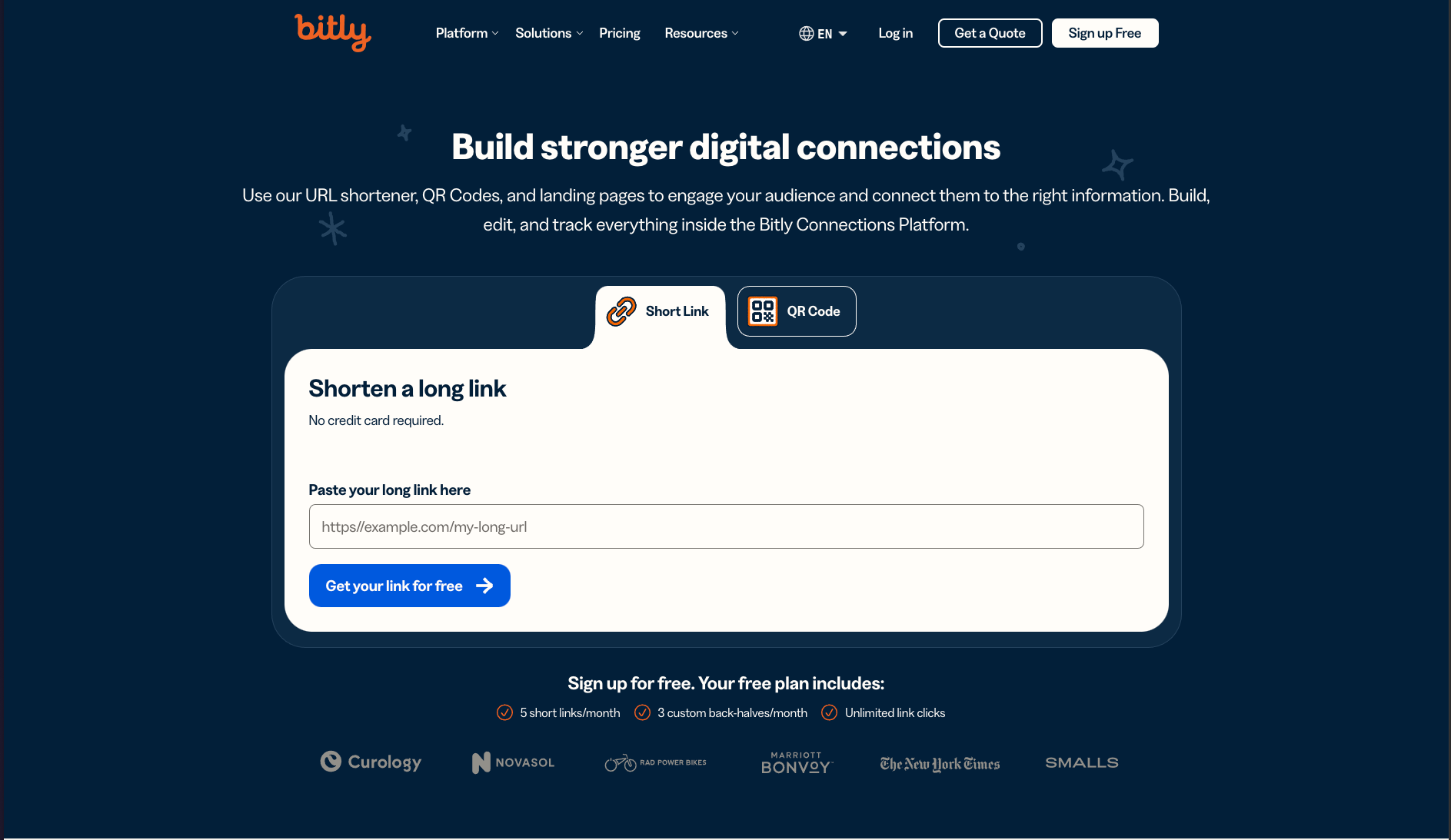
Enter Bitly.
Bitly is a free link shortener that should be in every teacher’s toolbox, but it’s essential for guest teachers. You can customize URLs so they’re simple enough to write on a board and easy enough for students to type into browsers independently. It eliminates the use of QR codes which can be tricky to capture on a Chromebook and avoids you having to find emails to share the resources.
I copied the share links to the notes, pasted them into Bitly, and created custom URLs like “bit.ly/nervesystem101”(not the actual link) that students could access immediately. I left the url on the interactive board in the front of the classroom for learners to access upon entering. Students walked in, pulled out their devices, and had the notes loaded before I finished taking attendance. Crisis averted.
Tuesday: Creating a Learning Hub from Scratch
I survived Monday through quick thinking and Bitly, but Tuesday required something more substantial. I needed a learning management solution that could facilitate discussion, distribute materials, create assignments, and track participation with no access to “official” channels that their instructors would have.
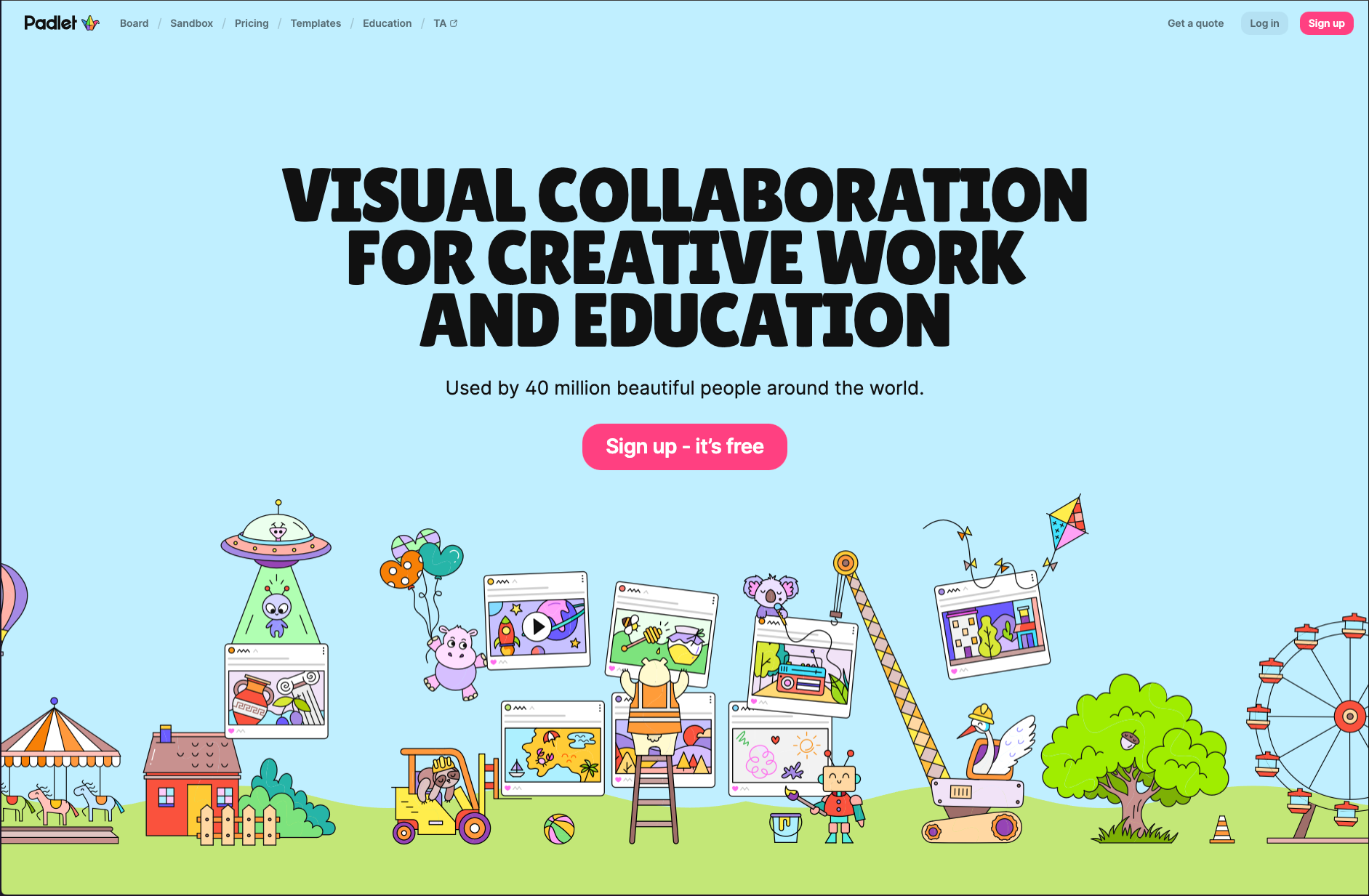
For years, I’ve told anyone who would listen that if I could only have one tool for the rest of my career, it would be Padlet. It’s a Swiss Army knife with more applications than I can count. Within 20 minutes, I created a Padlet that functioned as our makeshift classroom hub. I added discussion boards for each topic we’d cover, uploaded the day’s notes, and used Padlet’s AI teaching assistant to generate quick formative assessments on the Nervous System, DNA, and Heredity.
The URL went on the board via Bitly: “bit.ly/sciguestroom.” Students bookmarked it. By the end of Tuesday, we had a central location where everything lived. It was a one stop shop for notes, discussions, questions, upcoming activities. No LMS access required and learners would have access to it long after I left.
Why this matters: As a guest teacher, you can’t build on institutional relationships or prior knowledge of your students. A consistent, accessible hub creates the structure students need to engage with the content even though you’re temporary. They know where to look. That predictability matters when everything else about the week feels unstable.
Wednesday: Building Review Through Student-Generated Questions
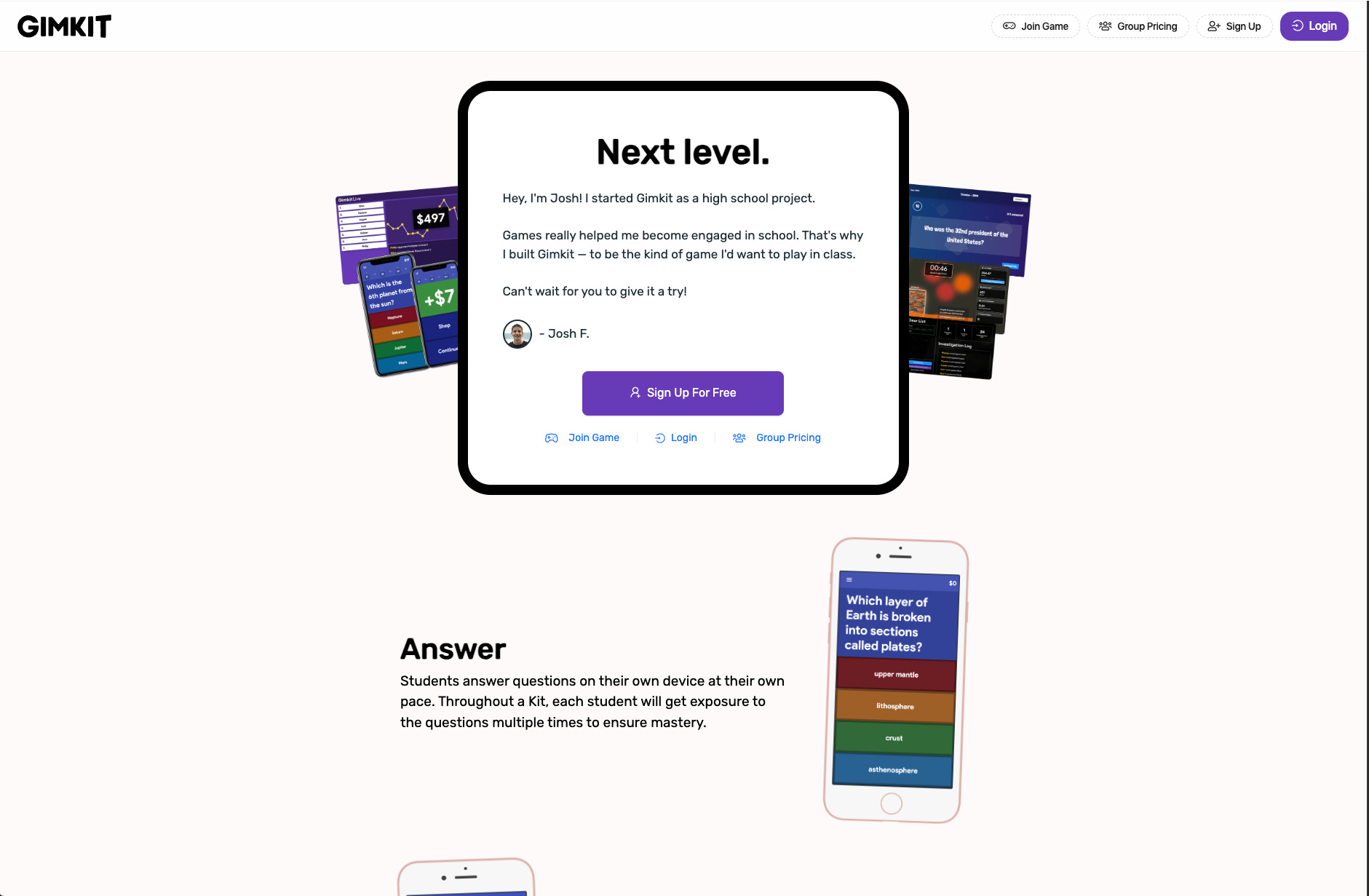
Block scheduling meant I didn’t see my Monday classes again until Wednesday. I used that gap to create a review game for the material we’d covered. I built the game in Gimkit because of one specific feature: KitCollab.
KitCollab lets you send students a link so they can contribute questions to the game. After we reviewed Monday’s content briefly, I sent students the KitCollab link (via Padlet, shortened with Bitly) and asked them to contribute two questions each to stump the class.
But here’s why this mattered pedagogically beyond just being a fun activity: I had no idea what these students knew coming in. While there was a bit of a rapport, it was just my second day with these learners. I hadn’t seen their previous work. Student-generated questions gave me immediate insight into what they understood, where the gaps were, and what their teacher typically emphasized. It also allowed us to discuss the accuracy of the questions. There were multiple times when the veracity of the questions was called into the question, forcing learners to scour through their notes in search of evidence. The results of the game and the submitted questions provided tangible data to communicate with the classroom teacher as to the status of their knowledge.
We discussed what makes a good question, what their instructor’s assessment style looked like, and how to use KitCollab before they started creating. By the time we played the game, I had diagnostic data I never could have accessed otherwise, and students had practiced a higher-order thinking skill while reviewing content. Win-win.
Thursday: Finding Engaging Supplementary Content on the Fly
Block scheduling meant I essentially repeated Wednesday’s successful formula with my Tuesday classes. Easy day. But that also meant I had breathing room to tackle a different challenge: how do you help students go deeper with content when you’re only with them for a week?
Their regular teacher would return on Monday. I wanted to leave them with resources that extended their thinking beyond memorizing systems and processes while connecting the science to broader contexts without requiring me to be an expert in every topic we touched.
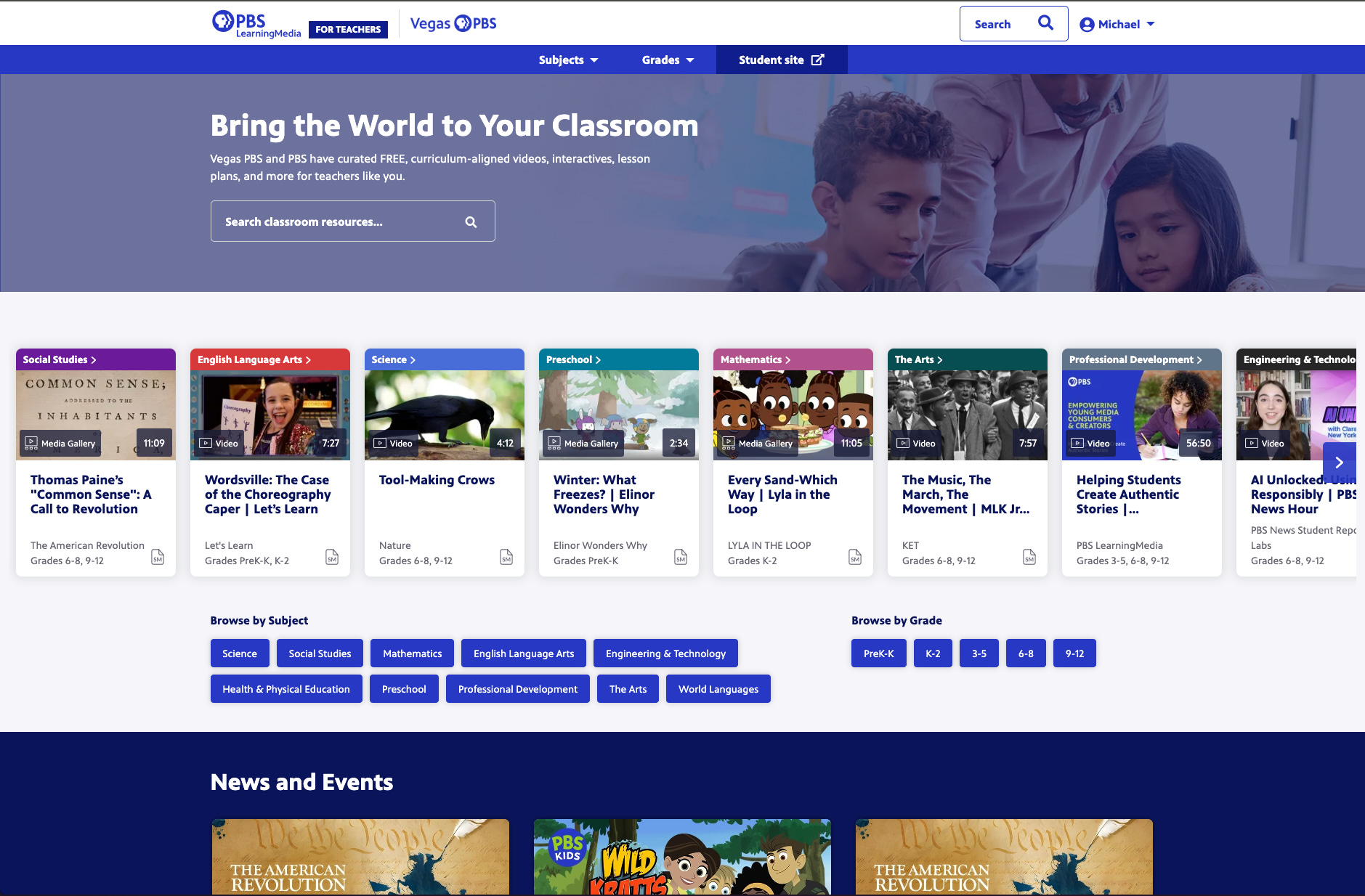
I turned to PBS Learning Media and Google Arts and Culture , both of which are free and don’t require logins to share information.
PBS Learning Media organizes resources by subject and grade level—videos, interactives, lesson plans, all vetted and curriculum-aligned. I found a short video about AI and Prosthetics so Anatomy and Physiology students could consider how their understanding of the nervous system applies to emerging technology. This elevated our exploration beyond just memorizing vocabulary words, but toward the application of their knowledge they were studying.
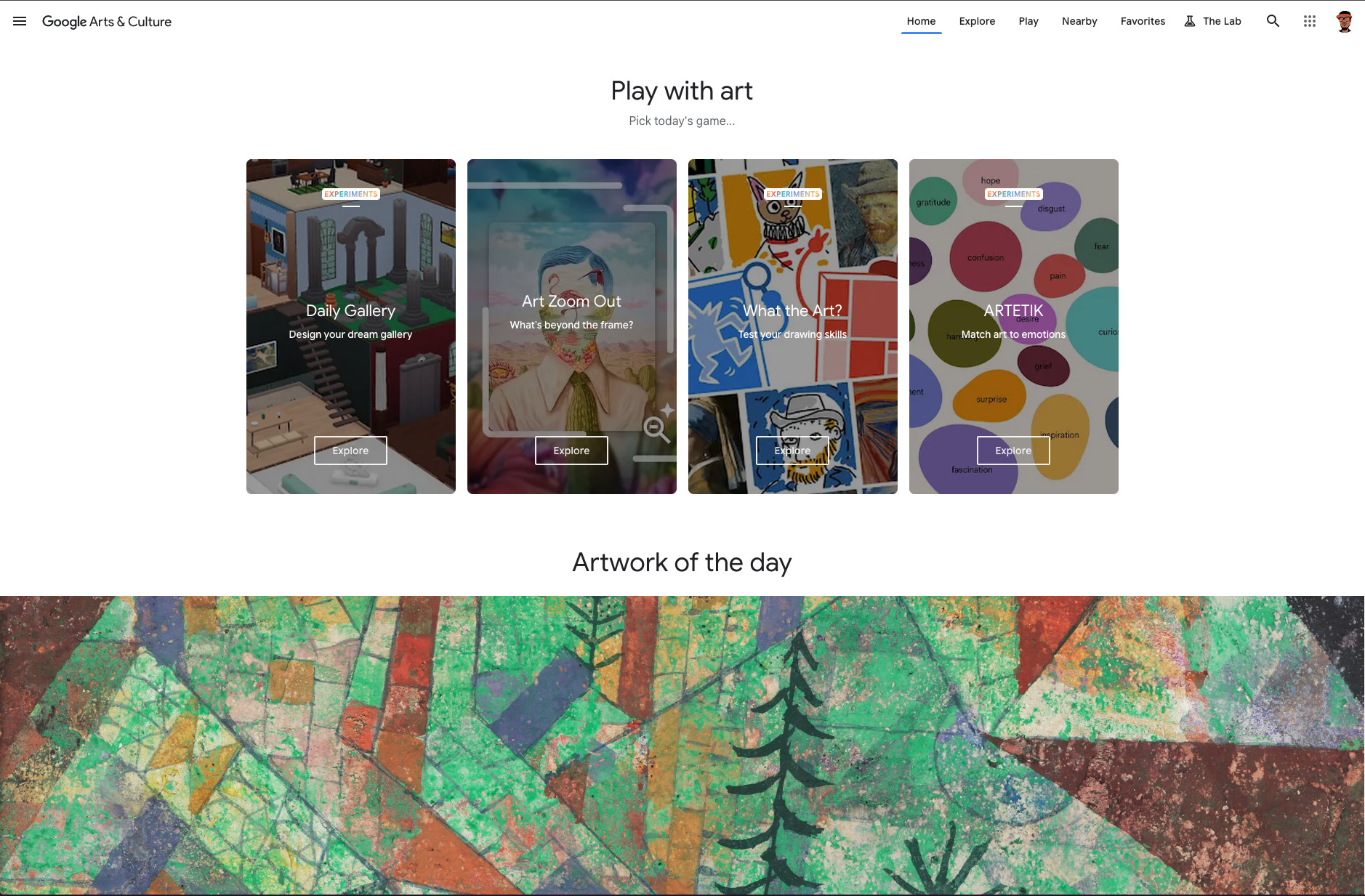
Google Arts and Culture creates surprising connections between academic content and culture. I found an online exhibit about Rosalind Franklin for the Freshman Bio course. We spent 15 minutes exploring her contributions to DNA research and discussing why her story matters. It gave context to the double helix models we’d been studying and opened a conversation about whose contributions get remembered in science.
Why these tools matter for guest teachers:You don’t have time to curate resources from scratch or vet random websites. These platforms are pre-vetted, trustworthy, and searchable. You can find something relevant in minutes, which is exactly the timeframe you’re working with.
Friday: Leaving Behind Study Materials That Actually Help
I wanted to leave students with comprehensive study materials and easy access to everything we’d covered during our week together. Normally this would take hours—compiling notes, organizing resources, creating study guides. I generated them in about 30 minutes.
I used NotebookLM, which has become my favorite instructional design tool. NotebookLM is Google’s AI notebook that can be isolated from the broader internet, making it far less likely to hallucinate information. More importantly, it’s a powerhouse for rapidly creating content based on materials you’ve already vetted.
I uploaded the PowerPoint presentations I’d been given, the resources I’d created throughout the week, and links to everything I’d found on PBS Learning Media, Google Arts and Culture, and YouTube. Then I used NotebookLM to generate different study aids for each course: an audio podcast summarizing key concepts, a whiteboard video for a visual demonstration, a timeline infographic, and a study guide with practice questions.
I dropped everything onto our class Padlet (which I’d kept updated all week) and shared it as a parting gift. Students had multiple formats to study from depending on how they learned best—audio for commuters, visual for the graphic-minded, text for traditional studiers.
Important note the AI tool: NotebookLM works best with content you have vetted. I would avoid scraping the internet or inventing information. Your best bet is creating resources based on materials the regular teacher provided or resources you’ve verified yourself so you’re not introducing hallucinated content into someone else’s classroom.
What Makes These Tools Essential for Guest Teachers
All of these tools can be used by any teacher in any learning environment, but they’re life savers for guest teachers moving from campus to campus. They require no special permissions, no district logins, no advance setup. They travel with you. They work immediately. And together, they let you transform from someone reacting to chaos into someone who can actually design coherent learning experiences for students you just met.
Monday morning, I walked into a classroom with no schedule and no plans, feeling like a stranger in a strange land. By Friday afternoon, I’d created a functioning learning environment, gathered meaningful data about student understanding, and left behind resources that extended learning beyond my five days there.
That’s not magic. That’s having the right tools in tow.