

We’ve been building something, and I haven’t said much about it here yet. It’s called Curator, and it’s for the part of teaching that eats your evenings: writing lesson plans and keeping track of which standards you’ve actually taught.
In this post I’ll introduce Curator, show you two things we shipped this week, and tell you how to get on the list for an invite.
Join the Curator early-access list
Why we built Curator
A lesson plan that has everything takes a long time to write. You look up the standard, turn it into a learning target, find strategies that work, and format it all into a document a sub or a coach could follow. Then, months later, someone asks which standards you’ve covered, and you’re digging through old plans to answer. Most teachers I know keep that record in a spreadsheet by hand, if they keep it at all.
Curator does most of that work for you, and it keeps the record as you go.
What Curator does
Curator builds a lesson plan with you, one step at a time. You tag the standard you’re teaching, and Curator drafts the learning target and the success criteria, which are the signs in learners’ work that show they got there. It suggests teaching strategies for each part of the lesson, strongest evidence first, with links to the research in case you want to read the studies. You rewrite anything you want, because it’s your lesson.
When you’re done, Curator saves the plan as a Google Doc in your own Drive and files it in a folder named for the standard. It also logs the standard in a Google Sheet called your Standards Log. Your home page adds it all up, so you can see which standards you’ve covered this year and how often, without keeping that spreadsheet yourself.
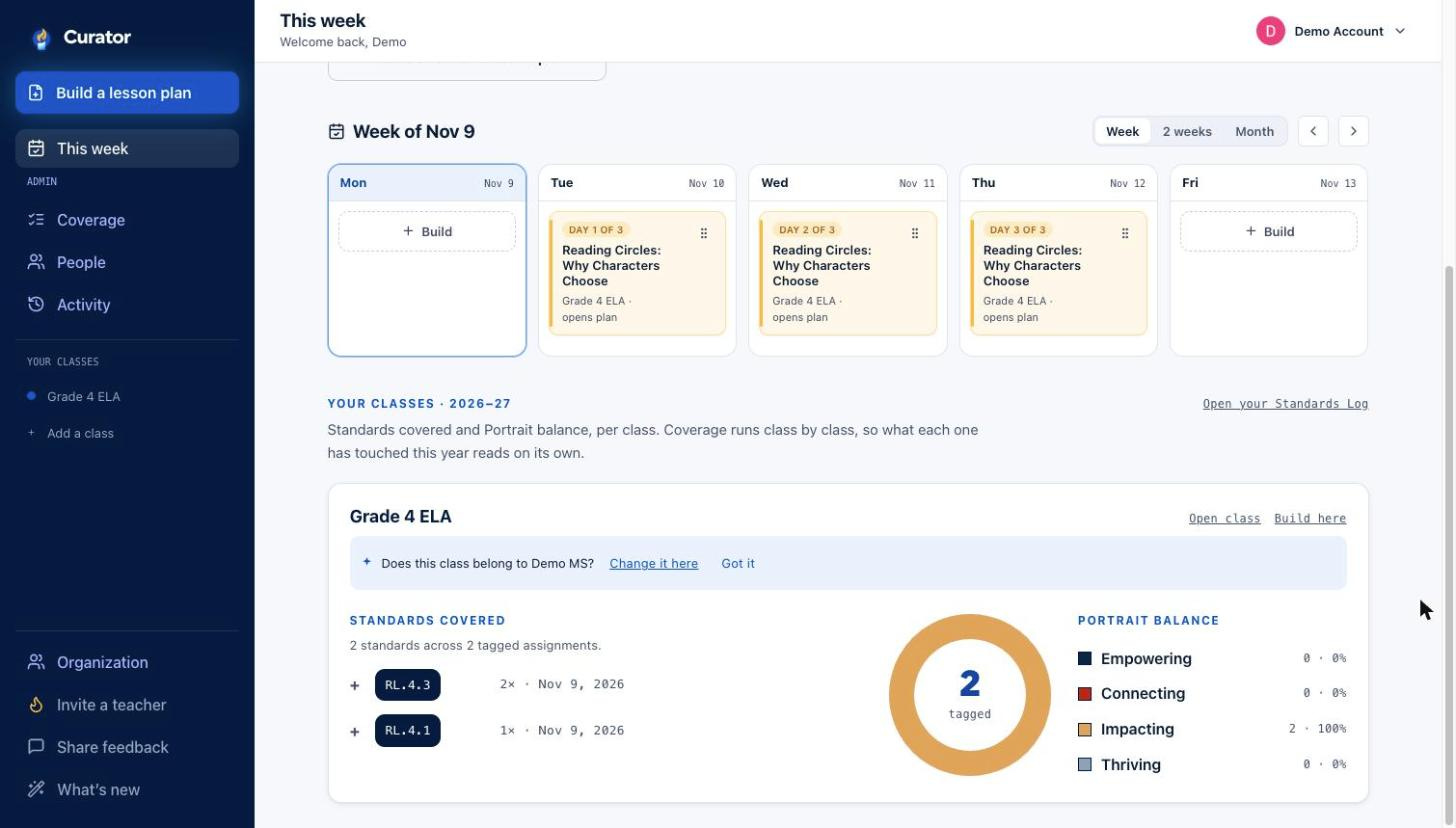
In Nevada and DC, Curator also shows how each lesson connects to the state’s Portrait of a Learner, which is a description of who learners are becoming, and lists the durable skills the lesson builds, the skills that carry from one lesson to the next.
Everything lives in your Google account. Curator keeps no learner records, and if you disconnect it, your plans stay exactly where they are.
Until this week, all of that only worked for plans you built in Curator. Most teachers I talk to have a folder of plans they’ve used for years, or a template required by their administrator. Nobody should have to rebuild those to get credit for teaching them, so now you don’t.
Add a plan you already have
On a class page, next to Build a lesson plan, there’s a new button called Add a plan you already have. It opens your Google Drive, and you pick the Doc. Plans in a shared drive work too, so if your team keeps its plans in one place, you can pick from there.
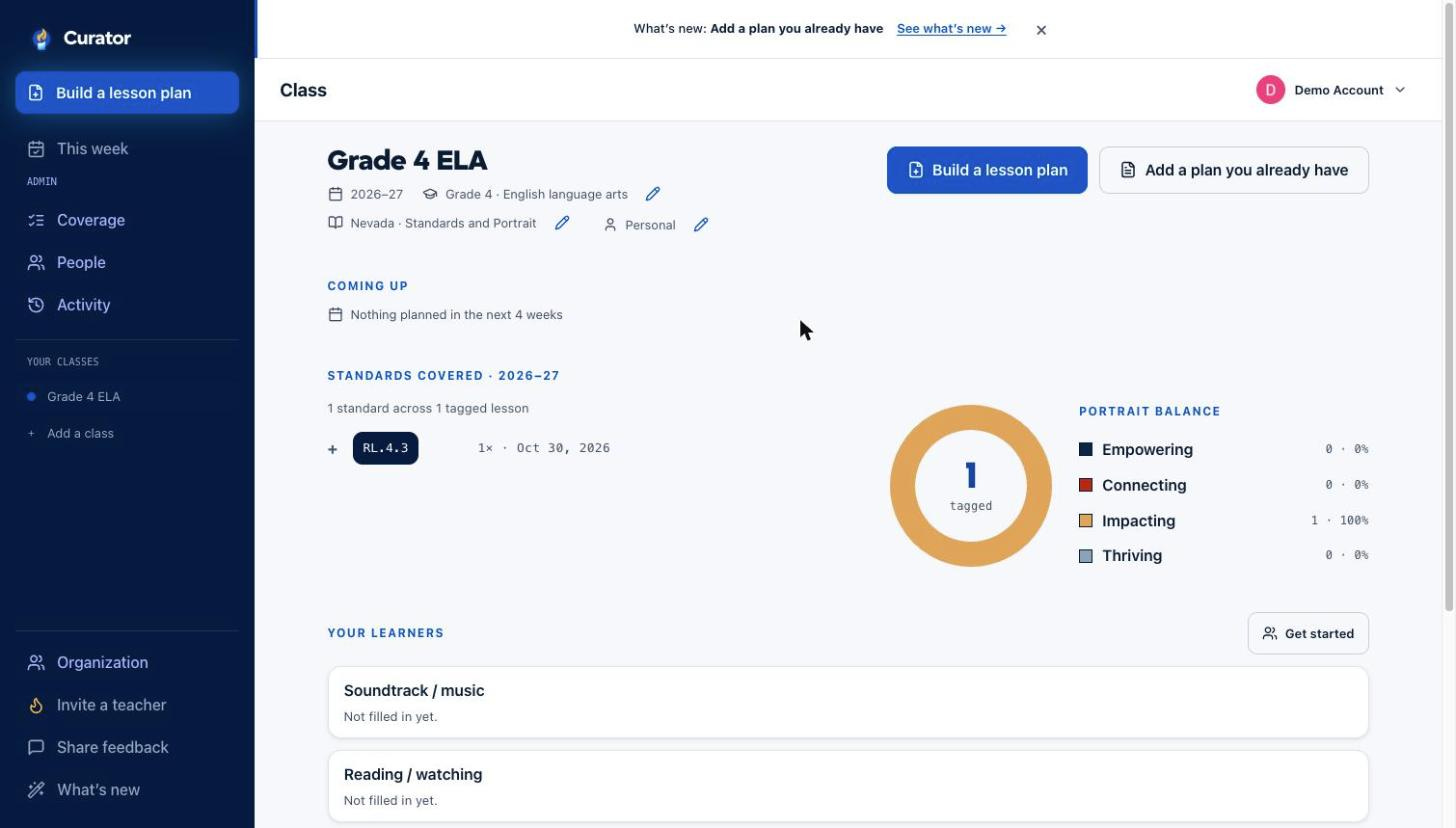
Curator then asks you a few questions on one screen:
Title. It starts from the Doc’s name, and you can change it.
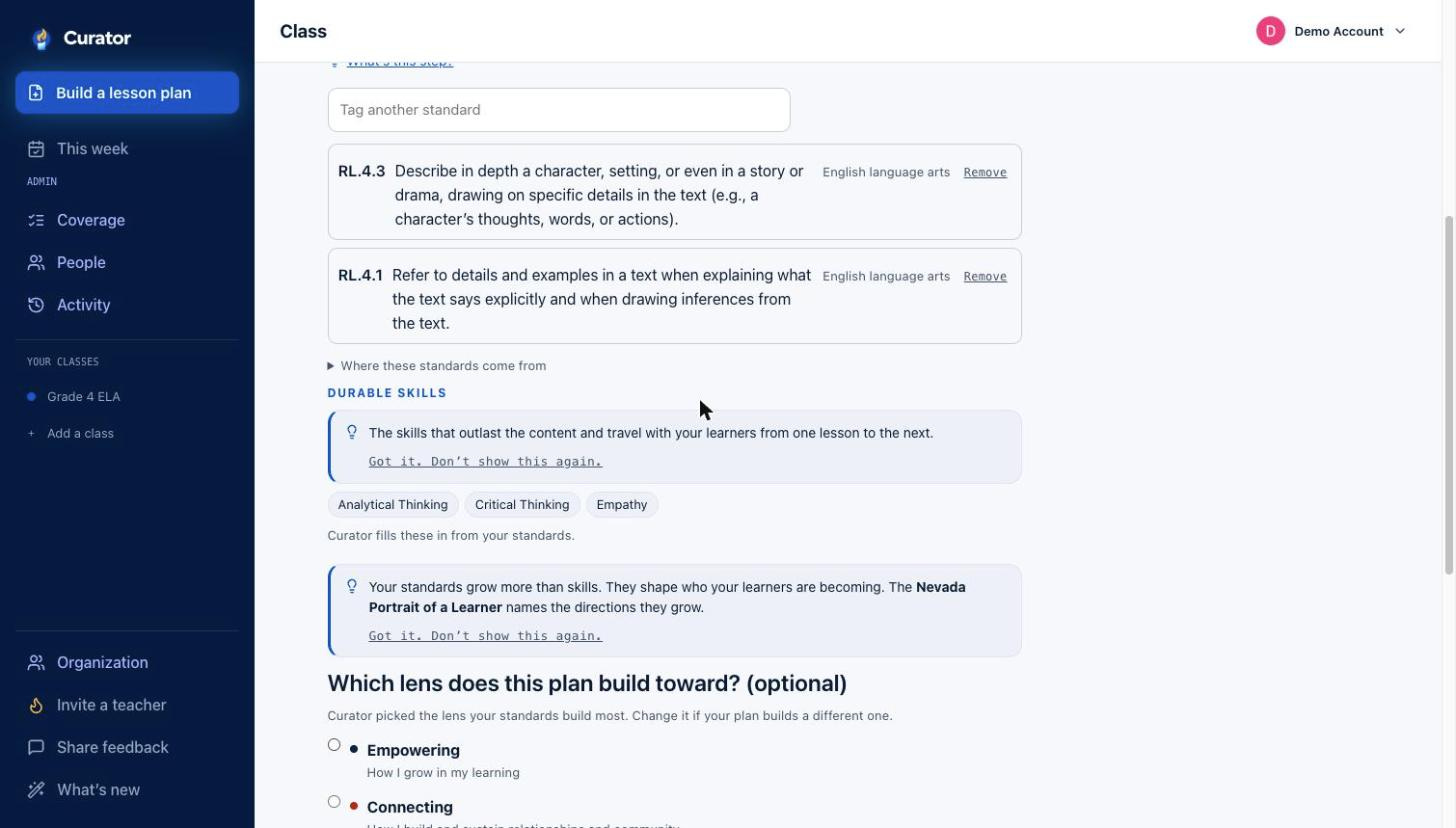
Standards. You tag what the lesson teaches, up to four standards for each day you teach it. Curator doesn’t read your Doc, so it doesn’t guess. You know what the lesson covers, and you decide what to tag.
Portrait of a Learner lens. In Nevada and DC, Curator suggests the Portrait direction your standards build most, and you can change it. A Portrait of a Learner is a state’s description of who learners are becoming.
Teach days. You pick the days you’ll teach it. The days can be in the past, so you can add a lesson you taught in September and have it count.
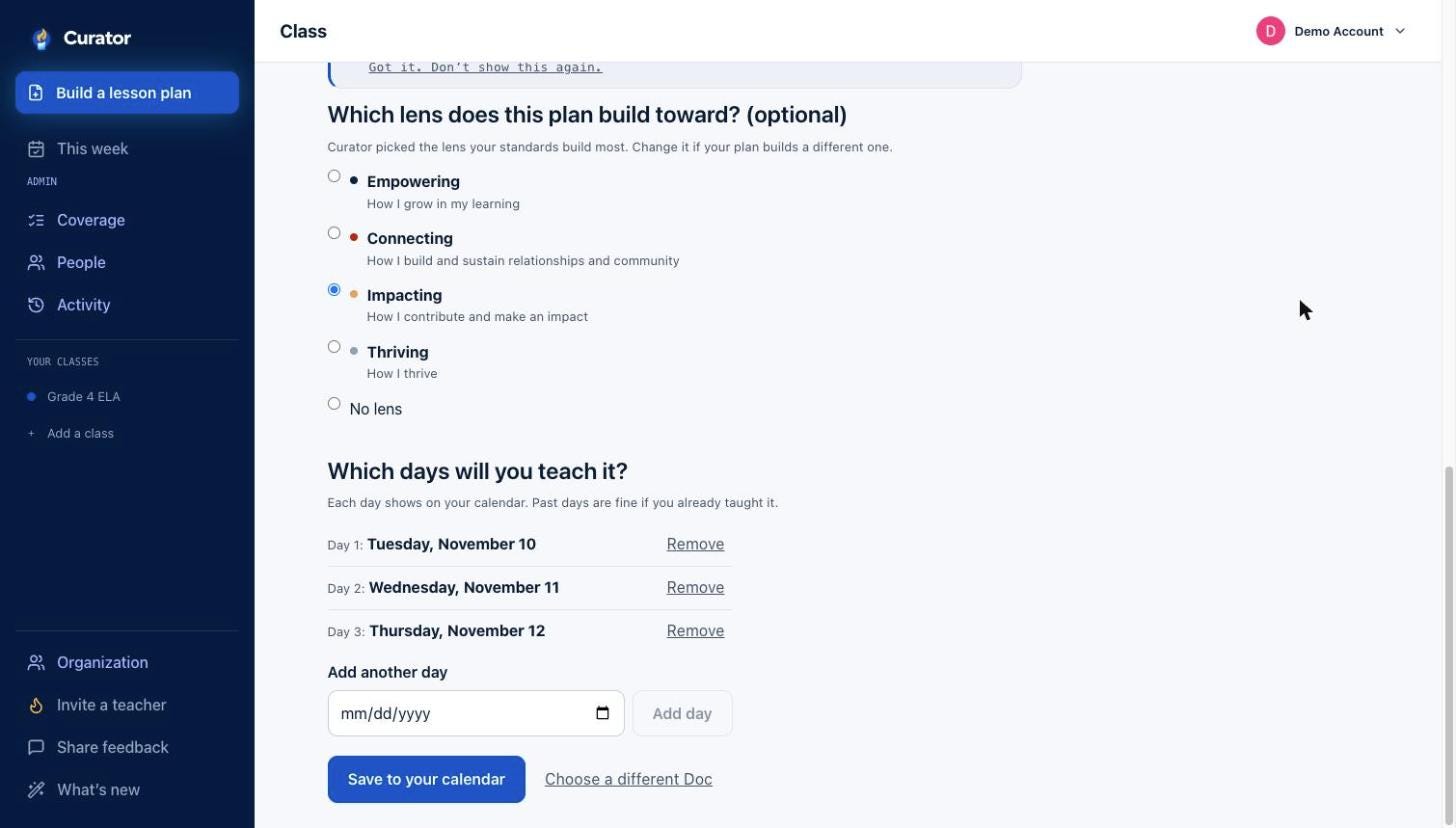
When you save, the lesson shows on your calendar, and your Standards Log and coverage count it the same way they count a plan you built in Curator.
Your Doc stays where it is
This was the part I cared most about getting right. Curator never moves, renames, edits, or shares the Doc you pick. Instead, it puts a shortcut to your Doc in each standard’s folder, the same way you’d add a shortcut in Drive yourself. Your Doc stays in the folder you keep it in, and the standard folders still have everything you’ve taught for that standard.
If you untag a standard later, Curator removes that one shortcut. Your Doc is never touched.

Lessons that take more than a day
A lot of good lessons don’t fit in one class period, and the calendar used to pretend they did. Now any lesson, built or attached, can run across as many days as you need.
Each day gets its own card on the calendar, labeled Day 1 of 3, Day 2 of 3, and so on. From the card’s menu you can move a day, add a day, or remove one. If you move a day that has more days after it, Curator asks whether to move just that day or that day and every one after it, which is what you want when an assembly eats your Tuesday.
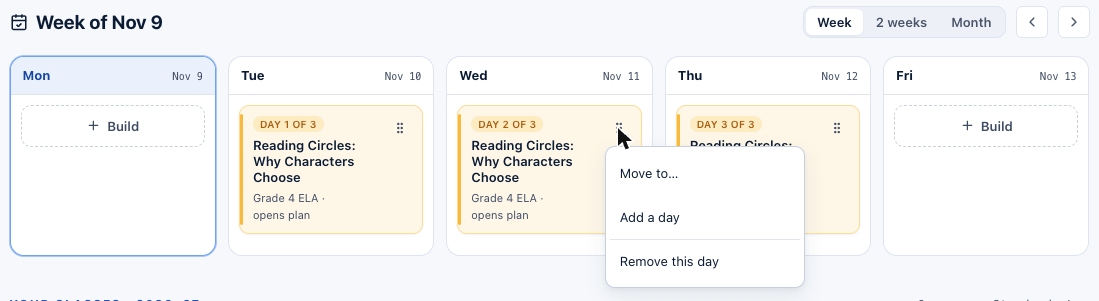
Your Standards Log records every teach day, and your coverage counts the lesson once, on the first day you teach it. A three-day lesson doesn’t look like three lessons.
Get on the list
Curator is invite-only while we open it to teachers a group at a time. Join the early-access list, and I’ll send you an invite when your group opens. The free account covers one class, and it’s yours to keep.
If you’re a paid subscriber, you already have an invite. It’s in the October 30 post.
Bring the plans you’re proud of, and let Curator do the filing.